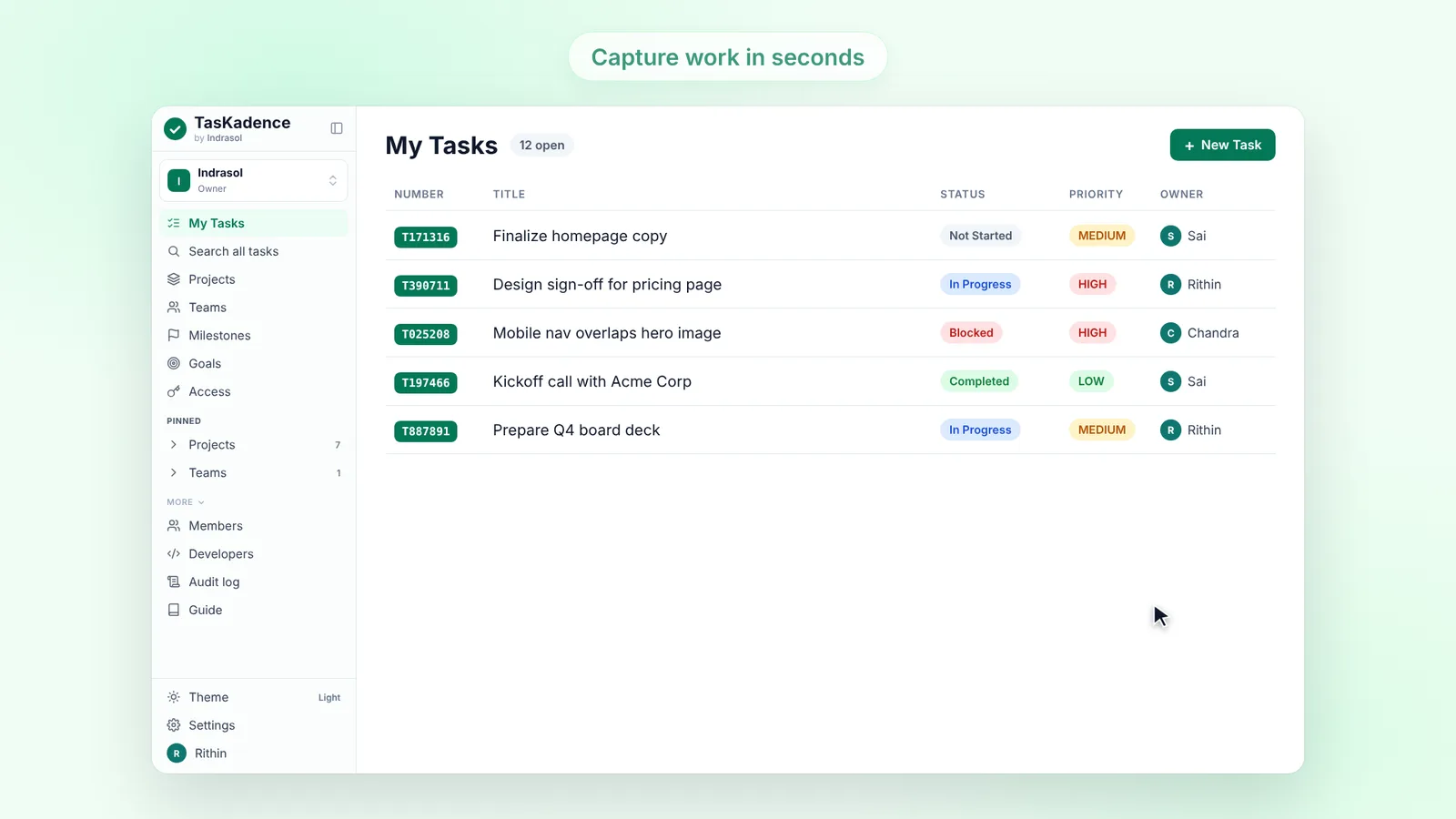
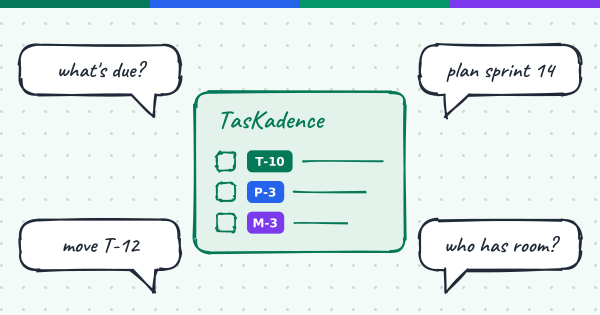
Most of the questions people ask about their work start in a conversation: what is due this week, who has room for one more task, is the sprint on track. If you already ask an AI assistant for help during the day, it can now answer those questions from TasKadence itself, and act on the answer when you say so.
What the connection is
TasKadence runs an MCP server. MCP, the Model Context Protocol, is an open standard that lets an AI assistant use tools from other products. Connecting TasKadence gives your assistant a set of tools for your tasks, projects, sprints, milestones, goals and saved views, and it works with the same records your team sees in the app.
You connect once. Your assistant sends you to TasKadence to sign in, and a consent screen shows what it is asking to do. If you belong to more than one organization, you choose All my organizations or a single one. You approve, and the assistant keeps its own token from then on.
What you can do from your assistant
- Find work. "What's on my plate this week?", "show the open tasks in the Website project", "what is blocking T812063?"
- Plan. Create a sprint, fill it with existing tasks, or draft several new tasks and create them only when the draft looks right.
- Update. Change a status, an owner or a due date, reply to a comment, react to one, or move a task into a sprint.
- Check in. "How is Sprint 14 going?", "who is overloaded right now?", "which goals are at risk?"
Every answer comes back as text your assistant can reason about. Assistants that support MCP Apps also show it as an interactive view, such as a task list with status menus or a sprint with its burndown, which you can act on directly. Where an assistant doesn't show views, you get the same answer as text.
Who it works with today
Any assistant that speaks MCP can connect. The ones we have tested and documented, with setup steps for each, are:
- Claude (on the web, Claude Desktop and Claude Code)
- Cursor
- VS Code with GitHub Copilot
- Codex
- Gemini CLI
- Windsurf
- Zed
Most of them connect with one URL, https://api.taskadence.com/mcp. Some can also run our local package instead. The steps for each are in our docs: Connect. If you use Claude, TasKadence is also in the Claude Connectors Directory; TasKadence now works inside Claude walks through it.
Your permissions, nothing more
An assistant connected to TasKadence can only do what you can do, and only within the scopes you approved on the consent screen. Some things stay in the app on purpose: inviting people, changing roles, tokens, webhooks and organization settings have no tool. Admin tools, such as deleting a task, stay off unless you ask for them when you connect.
Every change an assistant makes is recorded in the TasKadence audit log under your name, and shows up in each task's history like any other change. If your organization requires two-step sign-in, a connection stays blocked until you sign in again.
Getting started
- Pick your assistant in our Connect guide and follow its steps.
- Sign in to TasKadence and approve the consent screen.
- Ask "show my open tasks".
If something doesn't work, ask your assistant "who am I connected as?". It lists the organizations the connection covers and what it is allowed to do. You can also contact us from the Help menu in TasKadence.