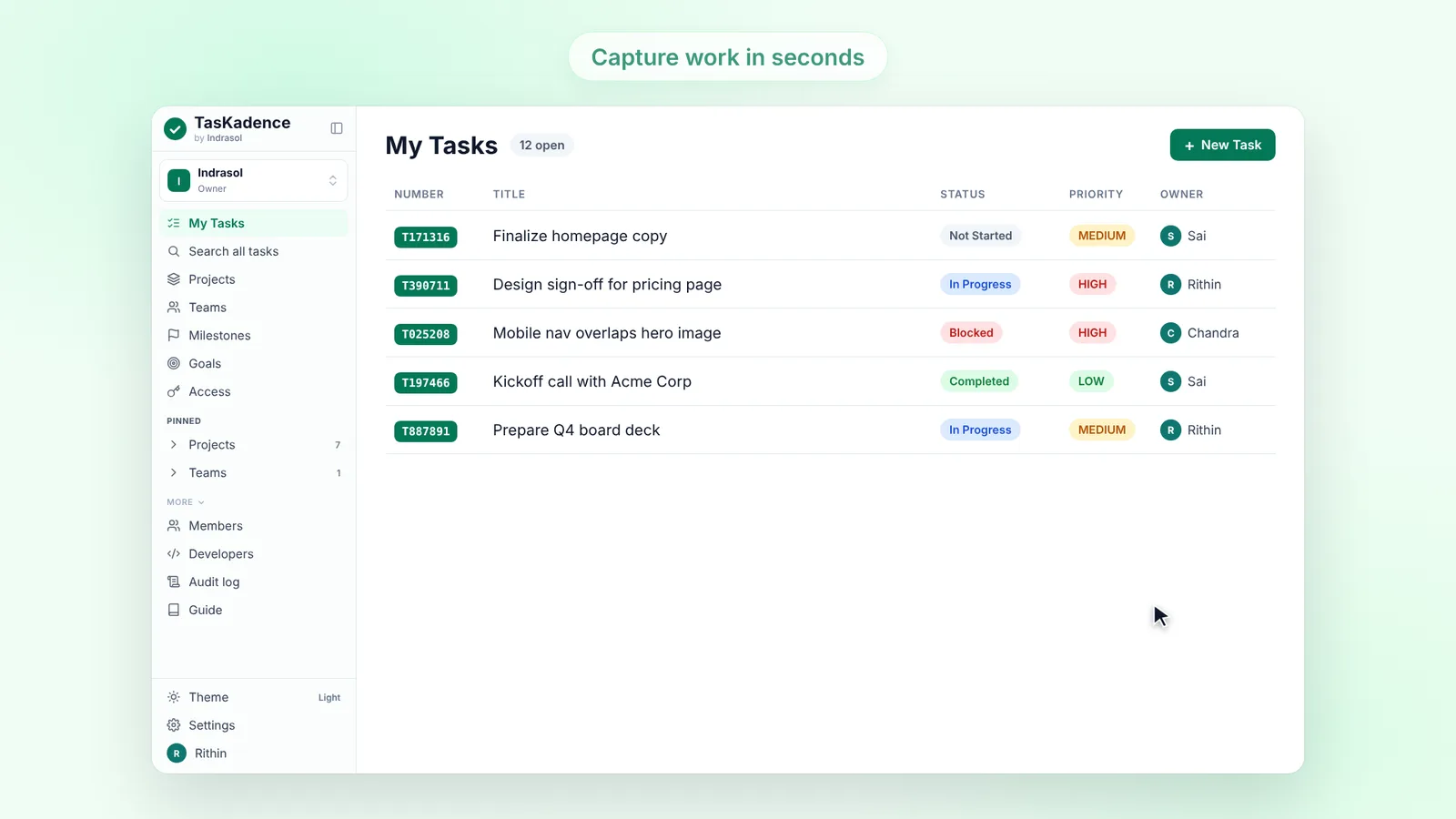
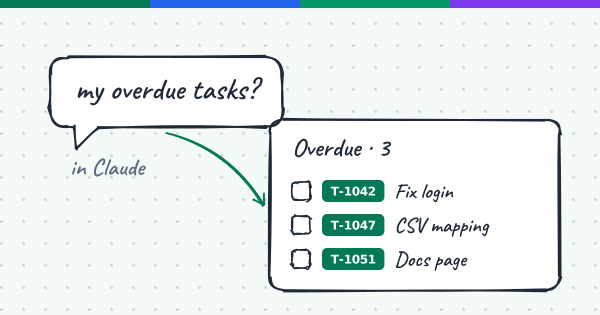
This release brings three pieces together: the connector itself, a single connection that can cover all of your organizations, and interactive views that show your work as cards inside the conversation instead of walls of text.
The connector
TasKadence is listed in the Claude Connectors Directory: find it in Claude under Customize → Connectors, or at claude.ai/directory/taskadence. It runs an MCP server, the open protocol Claude uses to talk to other tools, so adding it as a custom connector works too:
Name: TasKadence
URL:  https://api.taskadence.com/mcp
The URL is the same for everyone, and there is nothing to copy or paste after it. The setup steps for Claude, Claude Desktop and other clients are in our docs: Connect.
Once connected, Claude reads and changes the real records: "what's on my plate this week?", "create these five tasks in the onboarding project" or "what is blocking T812063?".
Some things stay in the app on purpose: inviting people, changing roles, tokens, webhooks and organization settings have no tool.
One connection for every organization
Many people belong to more than one organization: their company, a client workspace, a side project. A connection used to belong to one organization, and Claude was refused the moment you asked about another one.
Now, if you belong to two or more organizations, the consent screen offers All my organizations as the default, with each single organization listed below it if you want to keep things narrower. With "all" selected:
- Lists cover everything. "Show my open tasks" searches every organization the connection covers, and each row says which organization it came from.
- Ids resolve themselves. Ask about a task, project or sprint by its id and TasKadence works out which organization it lives in.
- Claude asks when it can't tell. If "create a task" could go to more than one organization, Claude asks you which. Nothing is written until that is settled.
- New organizations are included. Join another organization later and the same connection reaches it, with no reconnect. Leave one and it drops out.
You can always ask Claude "who am I connected as?" and it will list the organizations the connection covers, with your home organization marked.
Interactive views
Text answers are fine for a quick question, but a list of twenty tasks reads better as a list you can act on. Claude supports MCP Apps, an extension of the protocol that lets a tool's answer come with a small interactive view. We built eleven of them, plus a shared set of states (loading, stopped, error, empty) that every view uses.
Your tasks
My tasks groups your work by status, with counts for open, due this week, overdue and blocked. You can change a status from a menu, and clicking a title opens the task.
Task detail shows the description, what blocks it, what it blocks, its subtasks (which you can tick off) and recent activity, with a box to reply to comments.
Create tasks is a draft first. When you ask Claude to create several tasks, it can show them as editable rows before anything is saved. You change titles, owners or dates, untick what you don't want, and press Create.
Which organization? appears when a request needs you to pick an organization, with one option per organization.
Planning
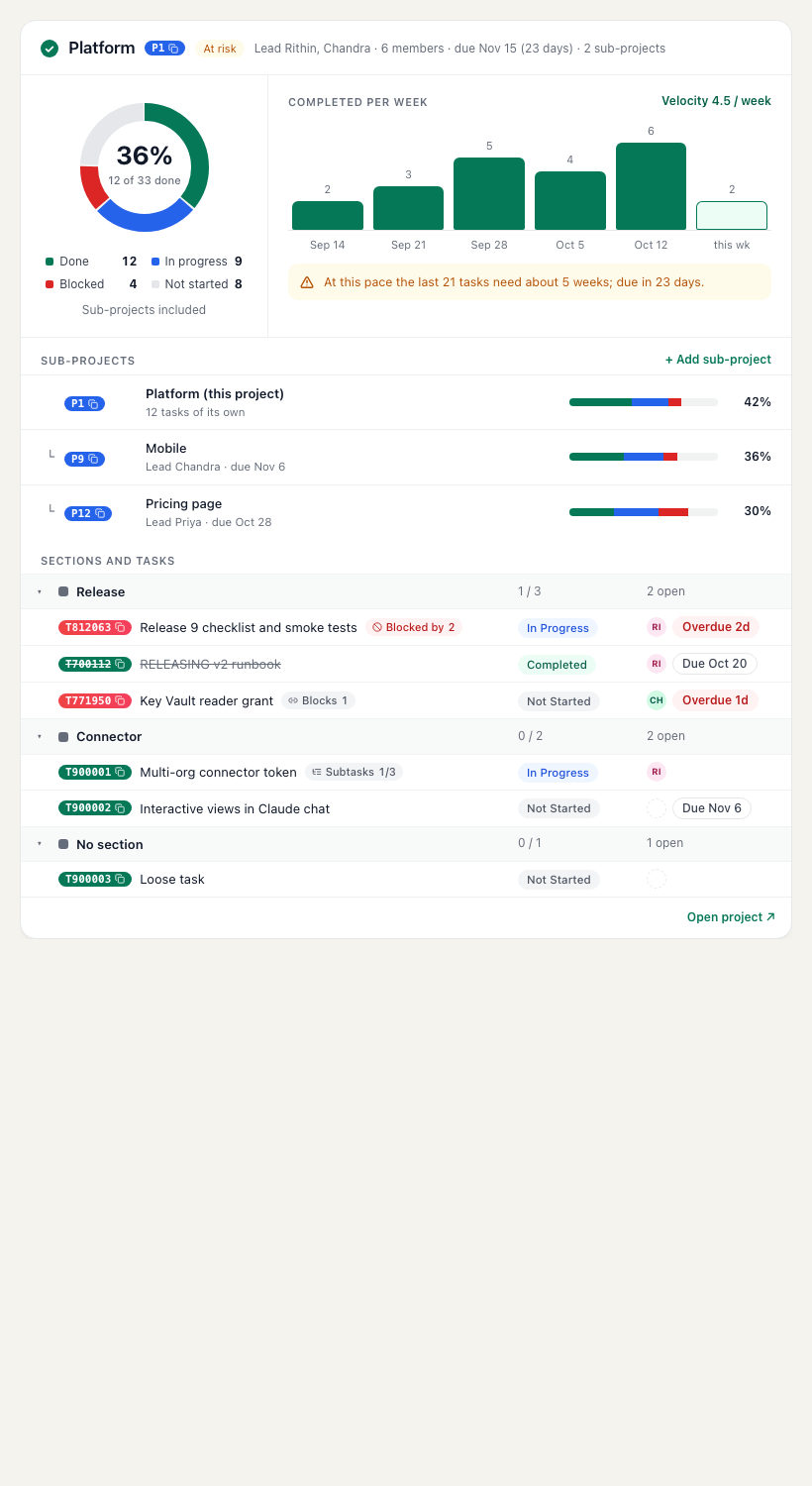
Project shows progress, weekly throughput, sub-projects and tasks. Sprint shows day N of M, done against total and a burndown chart. Goals shows a progress ring per goal, and Milestones puts milestones on a timeline.
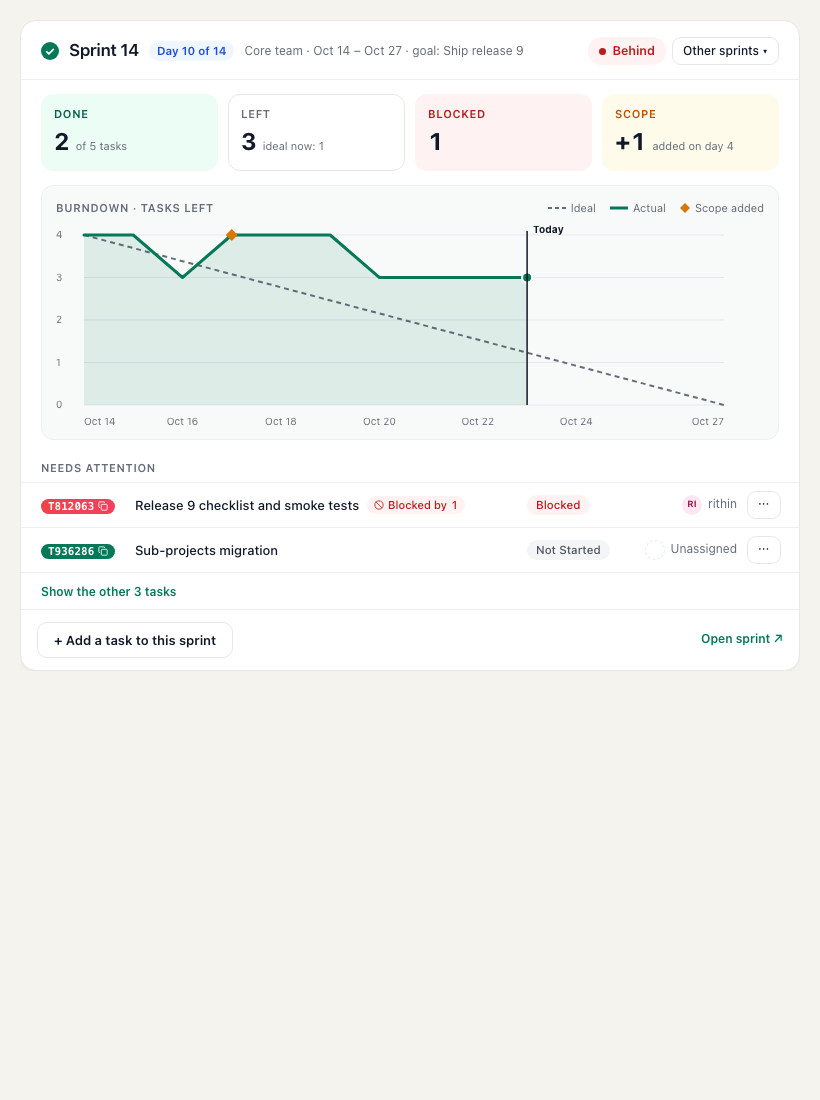
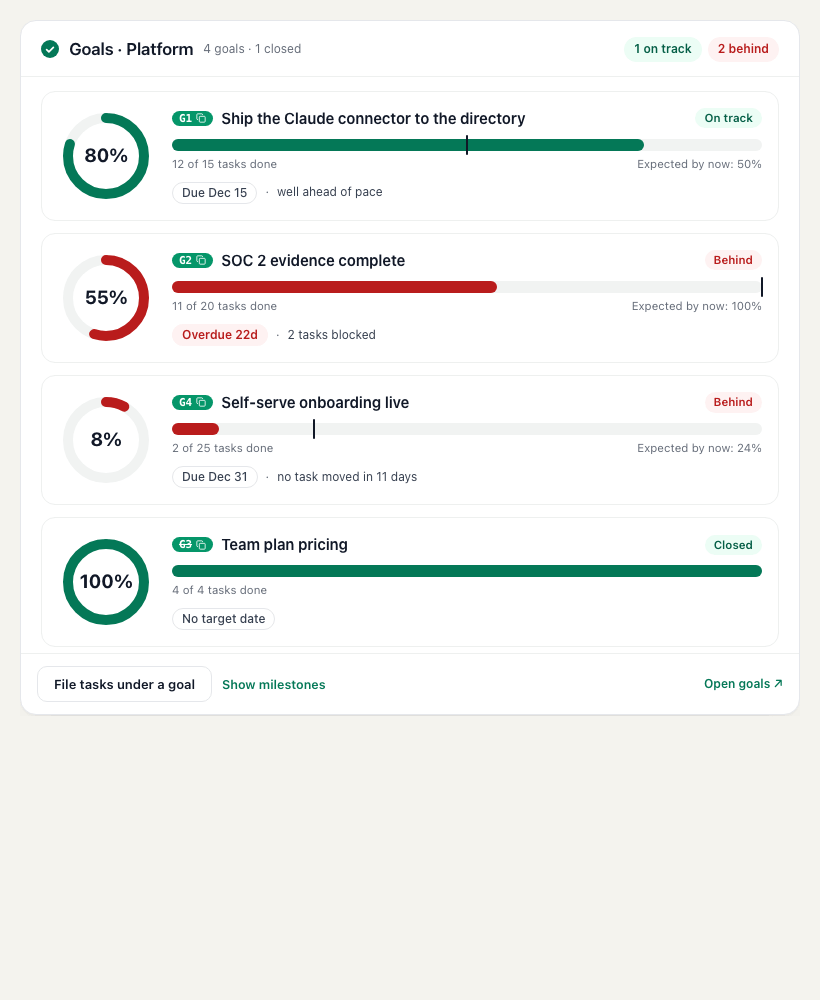
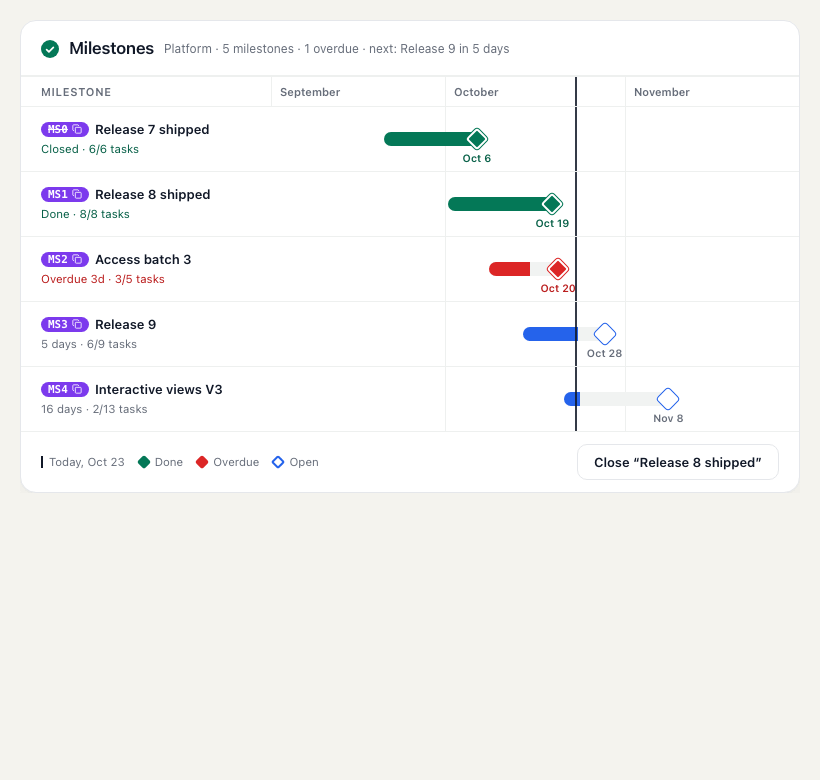
Planning board, storage and your connection
Planning board answers "who is overloaded?" in one call: open work per person across your projects, with in progress, blocked, overdue and due this week, and each project's sprints as lanes. It links to Planning in the web app. Storage shows how much of your account's free storage is used and what takes the most room. Connection shows who Claude is acting as, which organizations it covers and what it is allowed to do, in plain words.
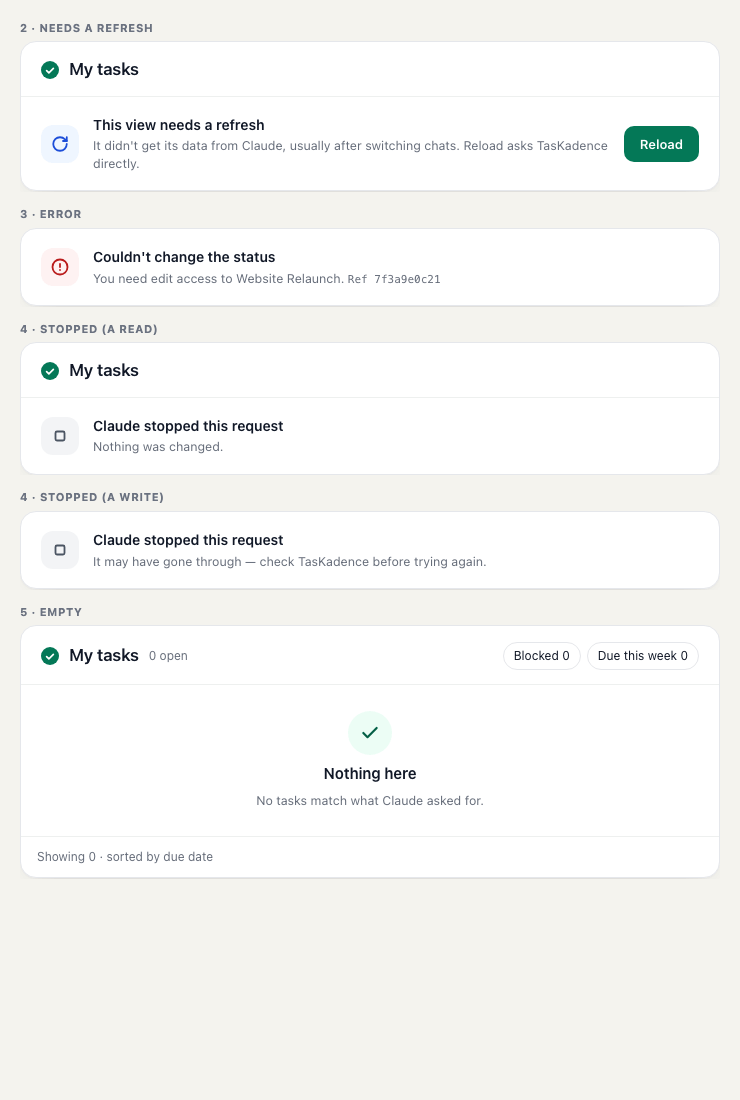
What we were careful about
- Real data only. Every number in a view comes from TasKadence. When the data for a section doesn't exist (for example a burndown without task history), the section is hidden rather than filled with something made up.
- The text stays. Every answer still carries its plain text, so Claude can reason about it and clients that don't show views get the same answer as before. Claude Code's terminal, for example, shows the text.
- No network from the views. A view never fetches anything on its own and holds no token. It gets its data from the tool answer, and any change you make goes back through Claude to the same tools, with the same permissions as the connection.
We wrote up how we built the views, including a few bugs we had to chase, in How we built interactive views with MCP Apps.
Getting started
If you already have TasKadence connected in Claude, the views come to your connection without reconnecting. If you connected for a single organization and want all of them, connect again and pick All my organizations on the consent screen. If you haven't connected yet, add the connector, sign in, and try "show my open tasks".
TasKadence is an independent product built by Indrasol. Claude is a product of Anthropic, and this post does not imply any endorsement by Anthropic.