- guide
- ai-assistants
Plan a sprint in 5 minutes with your AI assistant
A step-by-step walk through planning a project's sprint in TasKadence by talking to your AI assistant, with example prompts you can copy into any assistant connected over MCP.

Rithin Gullapalli
Product Architect, Indrasol
· 5 min read
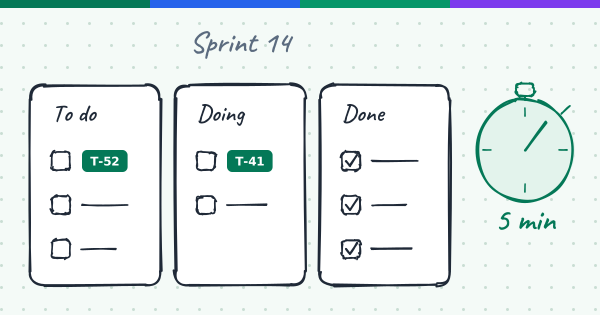
Sprint planning usually means a lot of clicking: open the backlog, create the sprint, move tasks one by one, fix owners and dates, check what is blocked. With TasKadence connected to your AI assistant, you can do the same work as a conversation. The assistant uses the same tools and permissions as your connection, and every change lands in TasKadence where your people will see it.
This guide walks through one sprint from start to finish, in six steps. The prompts are examples; phrase them however you like. They work in any assistant connected to TasKadence over MCP.
Before you start
You need:
- TasKadence connected in your assistant. The steps for each one are in our docs: Connect. If you use Claude, TasKadence is also in the Claude Connectors Directory.
- a project in TasKadence, because sprints belong to a project
- a connection that is allowed to work with projects, sprints and tasks (you choose this on the consent screen when you connect)
If you belong to several organizations and connected with "All my organizations", the assistant will ask which organization when a request could apply to more than one. Naming the project usually settles it.
Views or text. Some assistants show TasKadence's answers as interactive views (Claude does today); the others answer in text, with the same data. This guide names the views where they help, and every step works either way.
Step 1: Find your project and see what is waiting
Start by getting your bearings.
List my projects and how far along each one is.
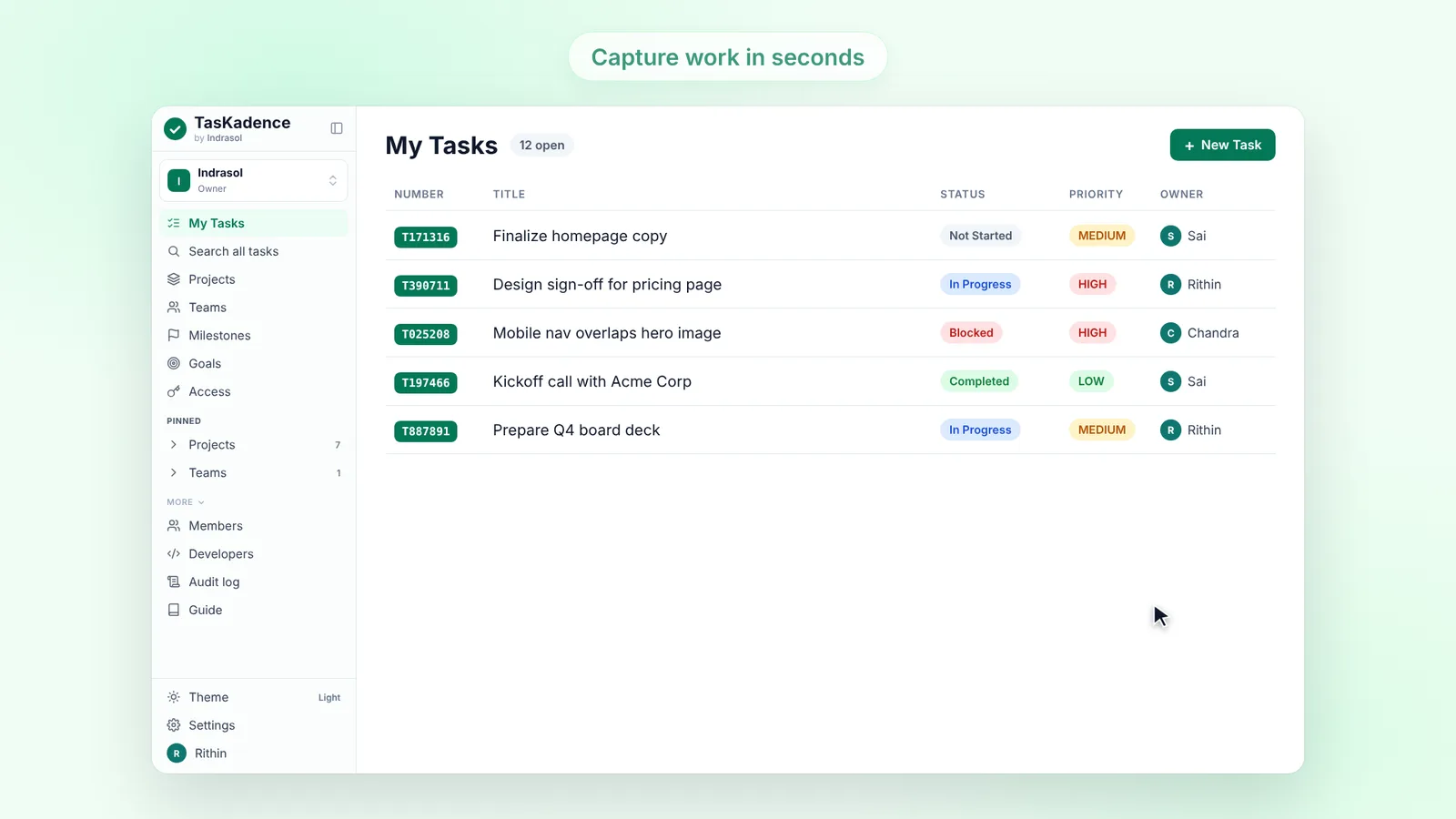
Show the open tasks in the Website project, highest priority first.
The assistant uses list_projects and then list_project_tasks. Where views show, the projects appear as the Project view and the tasks as a task list you can act on.
If your candidate work is spread across projects, search instead:
Search for tasks that are not started and due before the end of the month.
Step 2: Check the last sprint
Before planning the next sprint, look at how the last one went.
Show the Website project's sprints.
What is still open in the last sprint?
list_sprints returns each sprint's dates, status and task counts, and list_sprint_tasks lists the tasks in one sprint, filtered by status if you ask. The Sprint view shows day N of M, done against total and, where the task history allows it, a burndown chart.
If the last sprint is over, you can close it:
Mark the last Website sprint as completed.
Step 3: Create the sprint
Create a two-week sprint in the Website project called "Sprint 14", starting next Monday. The goal is "Ship the new import flow".
create_sprint takes the project, a name, a start date, and either an end date or a length in weeks, plus an optional goal and description. If you want to adjust it later:
Move Sprint 14's end date to the Friday after it ends and rename it "Sprint 14: import".
Step 4: Fill it
There are two ways to add work.
Move existing tasks in. Give the assistant the ids, or describe them:
Add T812063, T812070 and T812071 to Sprint 14.
Carry everything still open from the last sprint over to Sprint 14.
The assistant files each task with set_task_sprint. A task can only go into a sprint of its own project.
Create new tasks straight into the sprint. Ask for a draft first:
Draft these tasks for the Website project in Sprint 14, but don't create them yet:
- Import: CSV column mapping
- Import: progress and error report
- Import: docs page Make the docs page a subtask of the error report.
The assistant calls create_tasks with a preview, which writes nothing. In assistants that show views, the Create tasks view shows the draft as editable rows: change titles, owners and due dates, untick what you don't want, and press Create. In the others, the draft comes back as a list; say what to change, then "create them". One call can create up to 50 tasks with shared defaults such as the project and sprint, and a task can be a subtask of an earlier one.
Step 5: Set owners, priorities and order
Before assigning, check who has room:
Who's overloaded right now, and who has room for more?
get_workload answers in one call: open work per person, with in progress, blocked, overdue and due this week, and each project's sprints as lanes (the Planning board view, where views show). To see who is on the project:
Who is on the Website project?
Bulk changes are one request:
In Sprint 14, give the three import tasks to priya, set them to high priority, and set every due date to the sprint's end date.
update_tasks changes up to 100 tasks at once, with shared values and per-task overrides. Then record what has to happen first:
T812071 depends on T812063.
add_dependency records it, and tasks show "Blocked by" and "Blocks" from then on.
Step 6: Review the plan
Show Sprint 14.
Which tasks in Sprint 14 are blocked, and by what?
The sprint answer gives you the overview. Ask for any task to see its blockers, subtasks and recent activity (the Task detail view, where views show). If something doesn't fit, take it out:
Take T812070 out of Sprint 14.
During the sprint
The same conversation works for check-ins:
How is Sprint 14 going? Are we on pace?
Move T812063 to in progress.
Where views show, you can also change a task's status from the status menu in the view, and every view links to the same page in the TasKadence web app: Planning, or the project's Tasks, Milestones and Goals tabs.
A few tips
- Name the project and the sprint. It saves the assistant a lookup and avoids a "which one?" question.
- Ask for a draft first when creating several tasks. Nothing is written until you confirm.
- Use ids when you have them. TasKadence ids (like T812063) work in any organization the connection covers.
- Everything is recorded. Changes made through your assistant show up in each task's history like any other change, and the task's subscribers get the usual email.
Five minutes is a goal, not a promise: it depends on how much is in your backlog. But the clicking is gone, and you keep the decisions.